
On site
Connecting a screen to wifi
When a screen can't find a network it starts its own wifi, a hotspot. There you choose the network it should use, straight from your phone.
Short version
- Start the screen without a network cable and wait about a minute.
- If the screen finds no network it starts its own wifi called
StierSystems-MAC_…. Connect your phone to it with the hotspot password. - A page opens on the phone. Choose the venue's network, type its password and tap Connect.
- The screen's wifi disappears and the screen connects. It now shows its content or its QR code.
You get the hotspot password from Stier Systems or your partner. If you are a partner, it is shown here when you are logged in.
The page on the phone follows the phone's language, Swedish or English. On a screen with older software it is in Swedish: Anslut is Connect, Visa lösenord is Show password and Annat nätverk is Other network.
When does the hotspot start?
Every time the screen starts, it waits 45 seconds for a connection, through a cable or through a wifi network it already knows. If it still has no connection, it starts the hotspot.
- A cable always wins. If a network cable that gives a connection is plugged in, no hotspot starts.
- Known networks are used automatically. If the screen, or any other of our screens, has already been connected to the venue's network, and the network is approved, it connects at once. See The screens remember networks.
- The hotspot only starts when the screen starts. If the network disappears later in the day, it doesn't start by itself. Restart the screen (unplug the power and plug it back in) to get the hotspot again.
The hotspot's name ends with the screen's id in Blocks, for example StierSystems-MAC_1C697A654BE3. If several screens stand close together, there are several such networks. Label each player with its id, so you know which network belongs to which screen.
Step by step
1. Connect your phone to the screen's wifi
Open the wifi settings on your phone and choose StierSystems-MAC_…. The password is the same on all screens.
The phone notices that the network has no internet and opens the page for choosing a network by itself. If the phone asks whether to stay connected to a network without internet, answer yes. If no page opens, go to http://10.42.0.1 in the browser.
2. Choose a network and type its password
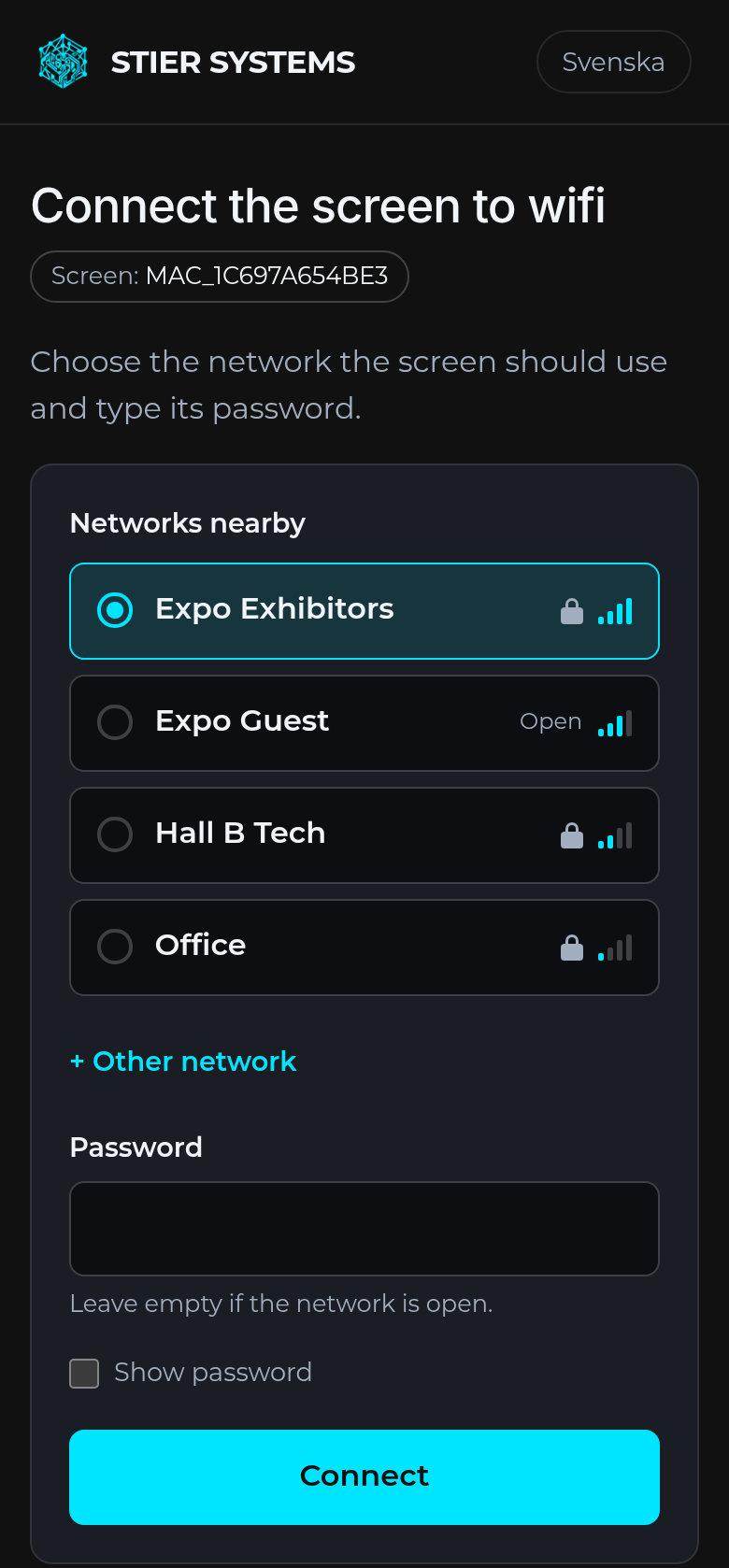
The page shows the networks the screen can see, strongest signal first. A lock means the network has a password. The bars show the signal where the screen is, not where you are.
- Tap the network the screen should use.
- Type the password. Tap Show password to check it. Leave the field empty if the network is open.
- If the network isn't in the list, for example a hidden network, type its name under Other network.
- Tap Connect.
3. The screen connects
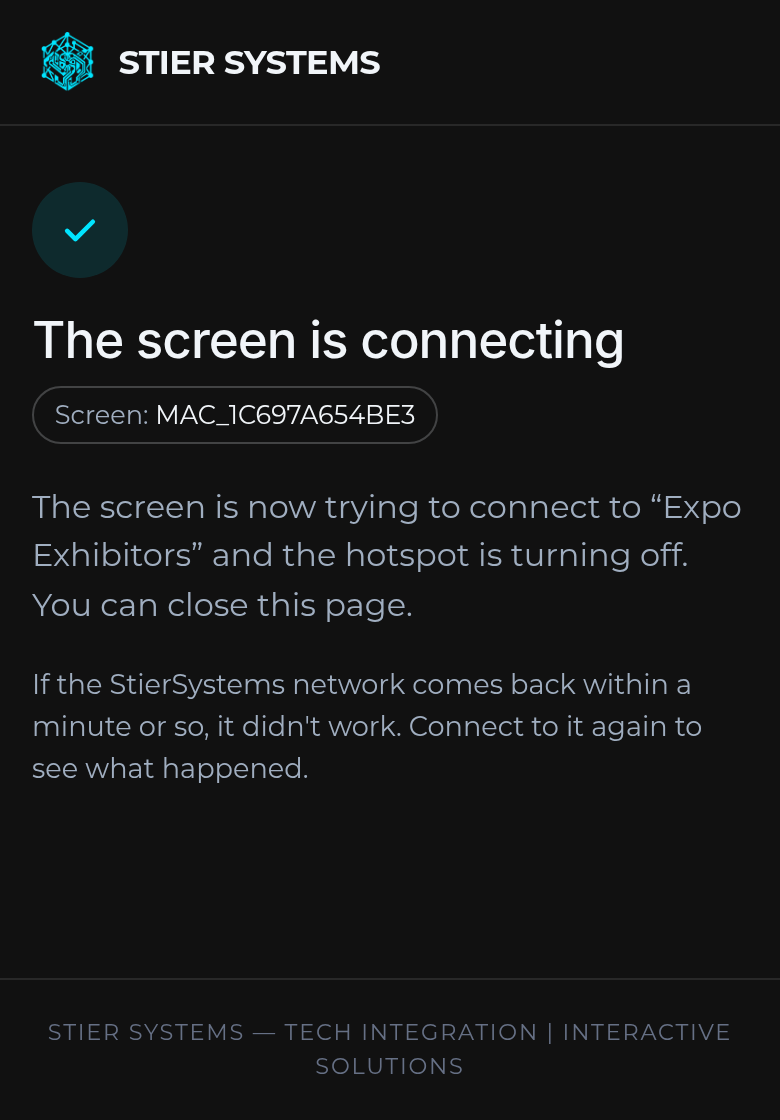
The hotspot closes at once, so your phone loses its connection to it. That is expected. The screen now tries to connect to the network you chose.
- It works: the screen is connected within a few seconds and shows its content or its QR code. The network is saved on the screen, so next time it connects at once.
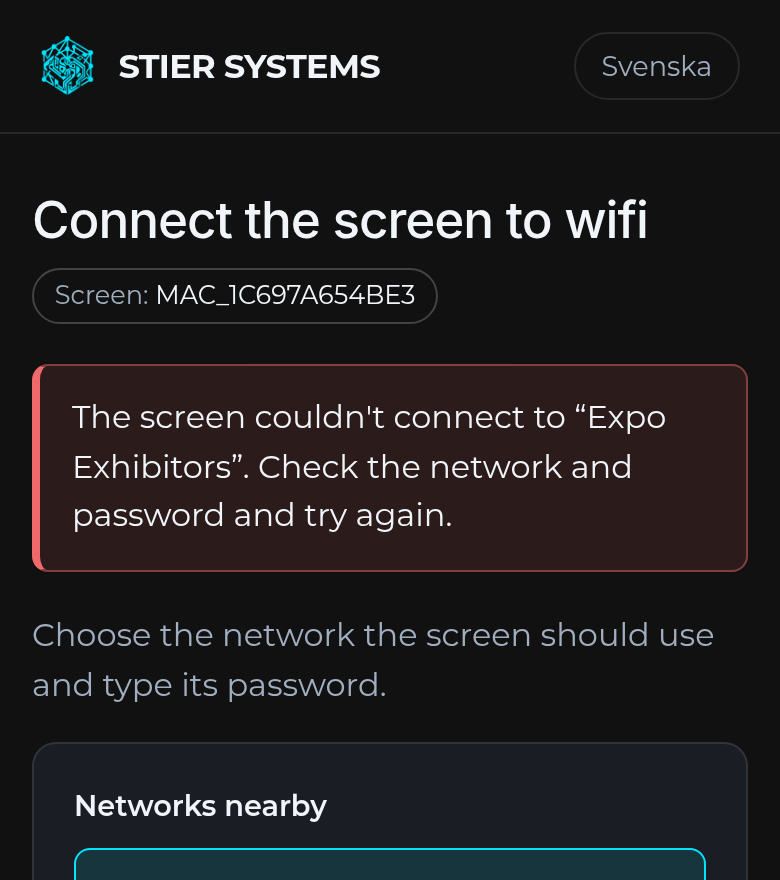
- It fails (wrong password, misspelled name, too weak a signal): after about 40 seconds the screen forgets the network and starts the hotspot again. Connect your phone again, and the top of the page tells you what went wrong.
The screens remember networks
Every network a screen has connected to is saved on the screen and kept after a restart. The screen also reports the network to Stier Systems, where it waits for approval.
- Once Stier Systems has approved the network, it goes out to all our screens, which then connect to it by themselves, without the hotspot. The screens fetch the list within a few minutes when they have internet.
- A network that isn't approved is only on the screen that connected to it.
- Stier Systems can also add the venue's network in advance, and can make all screens forget a network.
Send the venue's wifi name and password to Stier Systems in advance. Then all screens connect at once on site, and nobody needs the hotspot.
Troubleshooting
| Problem | Do this |
|---|---|
No StierSystems- network shows up | Wait a full minute after starting. Check that no network cable is plugged in. Restart the screen if the network disappeared during the day: the hotspot only starts at startup. |
| The phone won't connect to the hotspot | Check the hotspot password. Turn off mobile data if the phone keeps switching back to it. |
| The page doesn't open | Go to http://10.42.0.1 in the browser. |
| The venue's network isn't in the list | Type its name under Other network. If the signal is too weak where the screen is, it can't connect: move the screen or use a cable. |
| The hotspot comes back after Connect | Connecting failed. Read the message at the top of the page and try again. |
| The network requires logging in on a web page | Such guest networks don't work for the screens. Ask the venue for a network with an ordinary password, or use a cable. |