For partners
The partner portal
How to create projects for your customers, upload and publish material, and choose what Stier Systems' screens show on site.
How it works
- Log in at signage.stiersystems.se/login with your own login.
- Create a project per customer and event. Give the customer a login of their own if they should upload material themselves.
- Create playlists, upload material and publish, in advance.
- On site: scan the screen's QR code, log in, and choose which of your playlists the screen should show.
We set up your partner account with one login per employee, and we book the screens to your projects. Everyone in your company sees and works in the same projects. Other partners never see your projects.
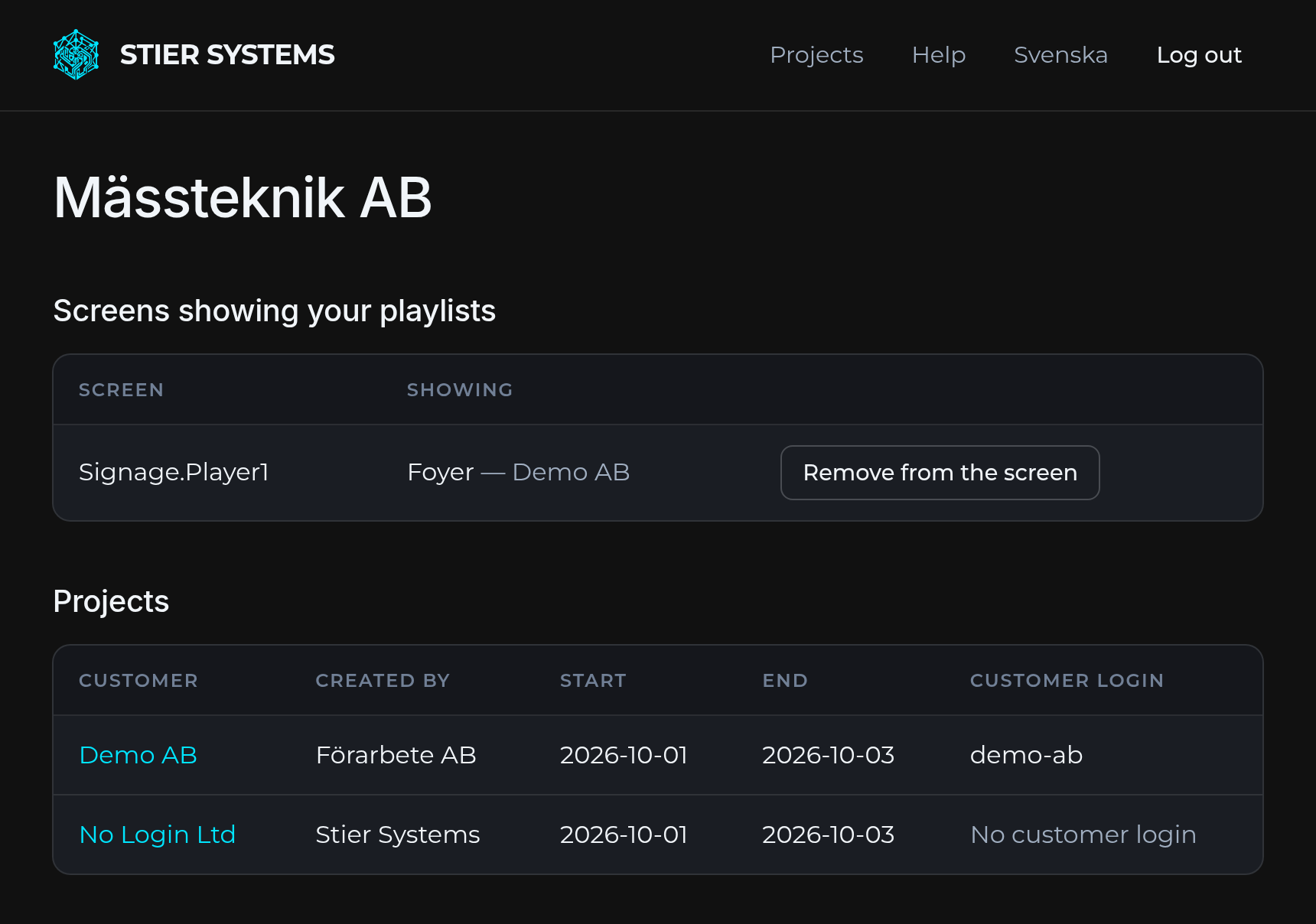
1. The start page
- Screens showing your playlists. Remove from the screen puts a screen back to its QR code, for example if the wrong playlist was chosen. Then scan the QR code and choose the right one.
- Projects: your own projects and those shared with you, with dates and whether the customer has a login of their own. Click the customer's name to open the project.
- New project, see below.
2. Create a project
Under New project you fill in:
- Customer: the customer's name.
- Start and End: the event's first and last day. The end date decides when the screens are reset and the material is deleted, see After the event.
- Customer's username and password (optional, at least 8 characters): fill in both if the customer should log in and upload material themselves.
Then ask us to book the screens to the project. Booked screens come first among the resolutions when playlists are created.
The project page
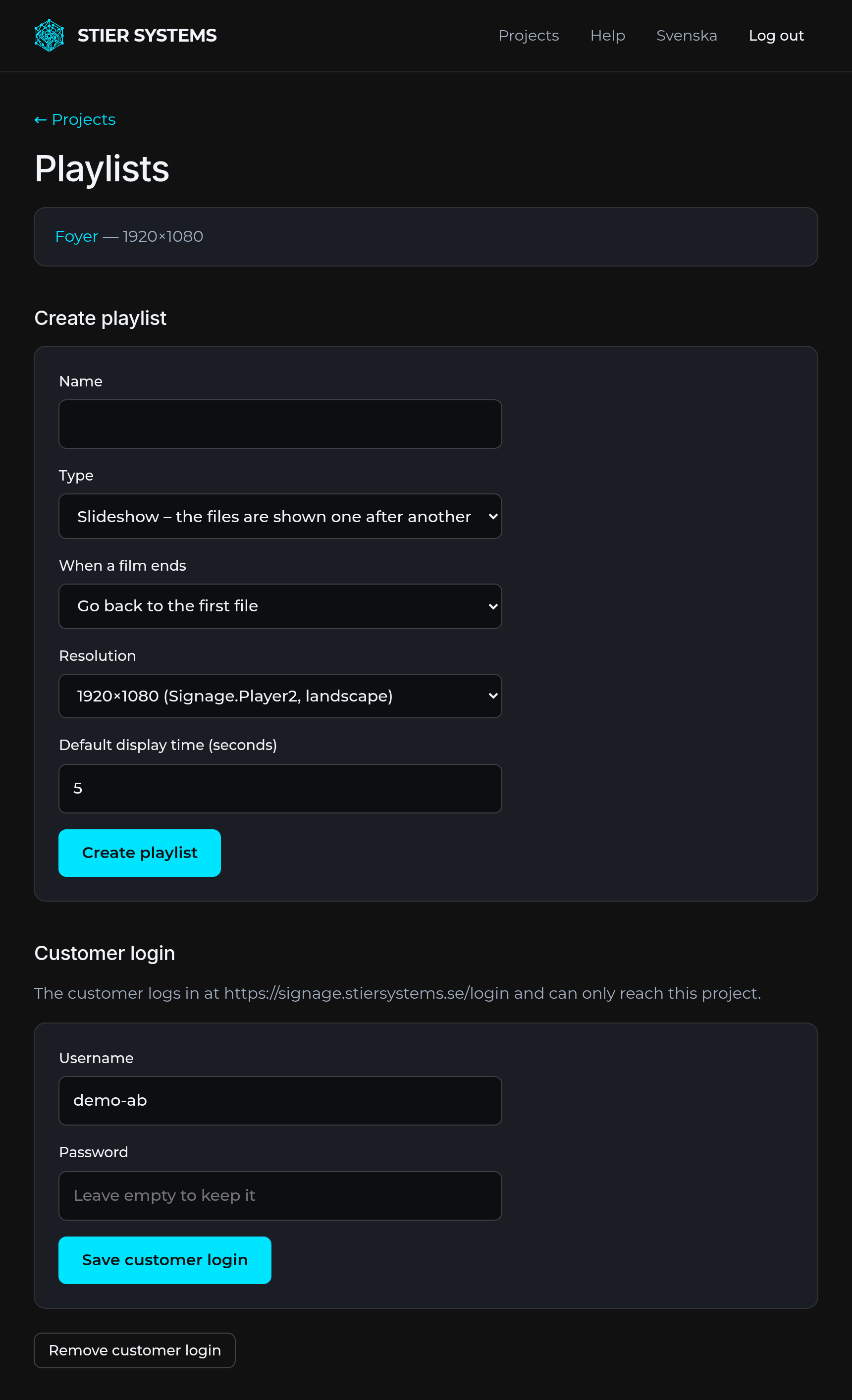
The project page shows the project's playlists and the form for creating a new one. It also has:
- Customer login: add, change or remove the customer's login. The customer logs in on the same page as you and can only reach this project. Send them the link to the guide for customers.
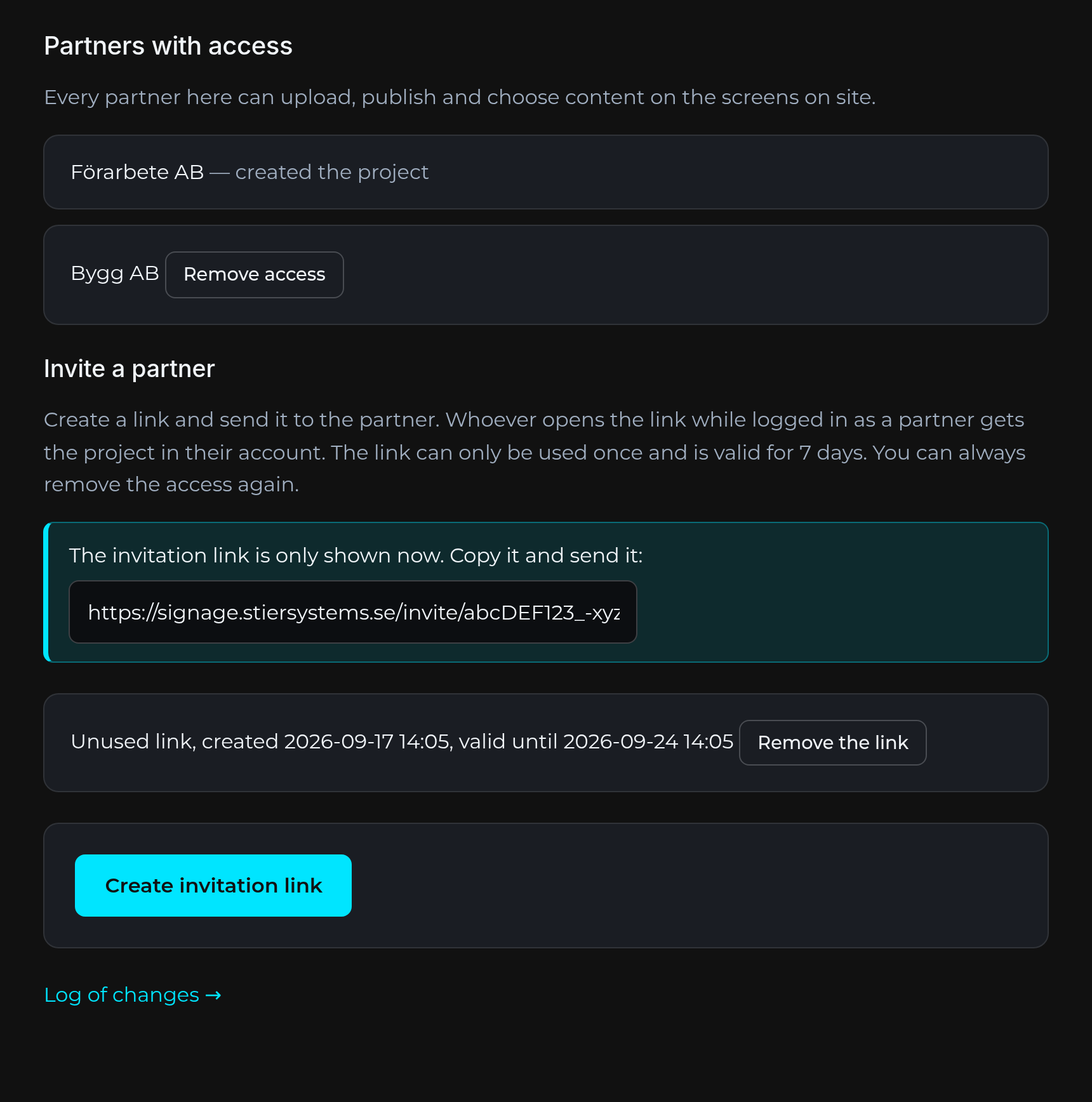
- Partners with access: which partners can work in the project. Everyone with access can upload, publish and choose content on site.
- Invite a partner (for projects you created): press Create invitation link and send the link. Whoever opens it while logged in as a partner gets the project in their account. The link is shown only once, can be used once and is valid for 7 days. You can remove the access again.
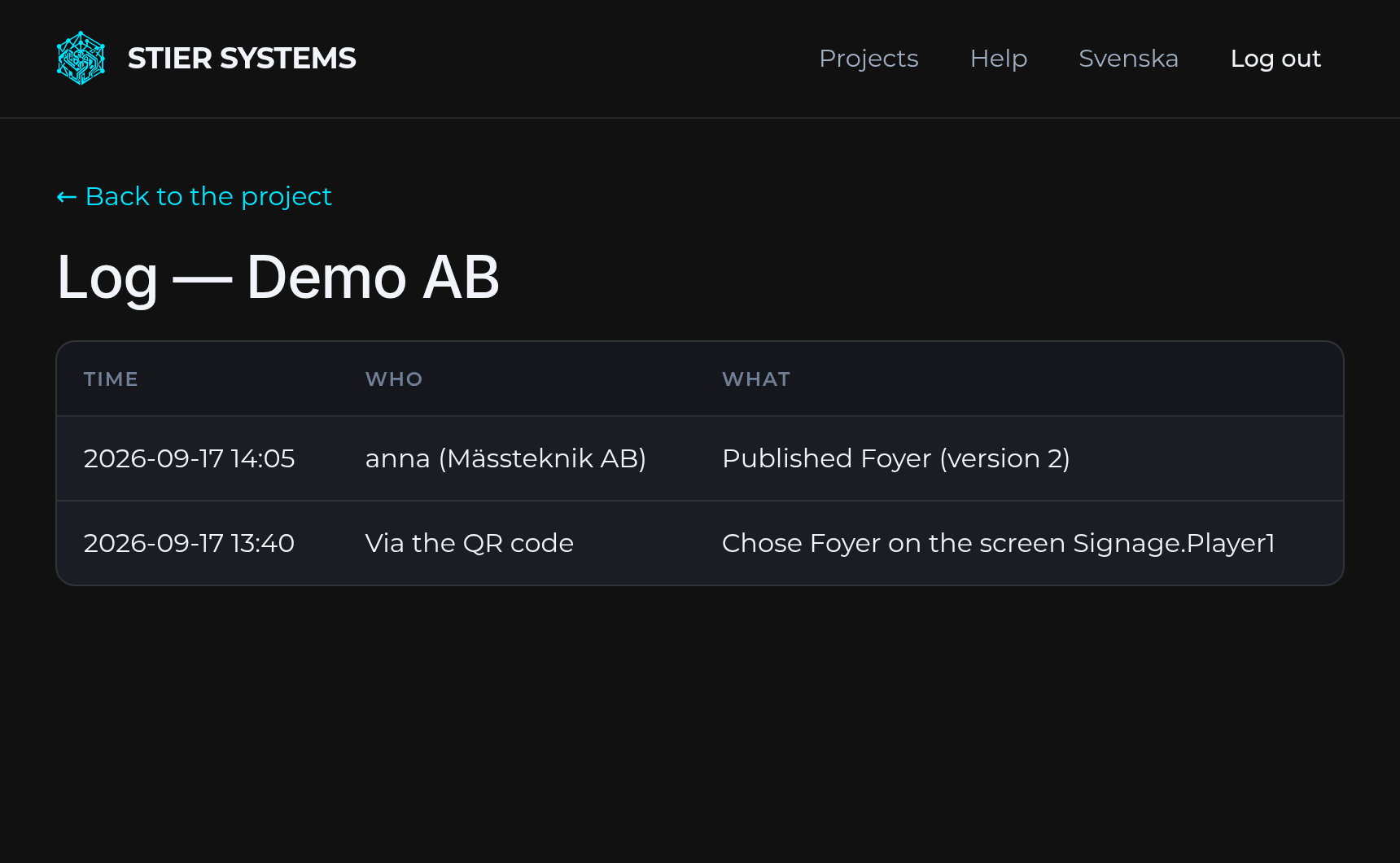
- Log of changes: who did what in the project and when, including choices made through the QR code.
3. Playlists and material
A playlist is what a screen shows: the files one after another, over and over. Give it a name, a resolution (the project's booked screens, landscape and portrait, common sizes, or Custom resolution…) and a default display time for images. The screens don't need to be booked for you to get started. The type is either slideshow or remote-controlled, where someone chooses the film with a phone, see Remote-controlled playlist.
A portrait playlist turns the screen to portrait, a landscape one to landscape. This happens automatically when the playlist is chosen, and holds even if the screen loses its network.
| Type | How it is shown |
|---|---|
| Image (JPG, PNG etc.) | The default display time, or a time of its own for that image. |
| Video (MP4 preferred, H.264) | The whole video plays, with sound. |
| Each page becomes an image of its own. | |
| PowerPoint (.pptx, .ppt) | Each slide becomes an image of its own, without animations and transitions. |
- Up to 2 GB per file and at most 50 pages/slides per PDF or presentation.
- An interrupted upload continues where it stopped if you choose the same file and press Upload again.
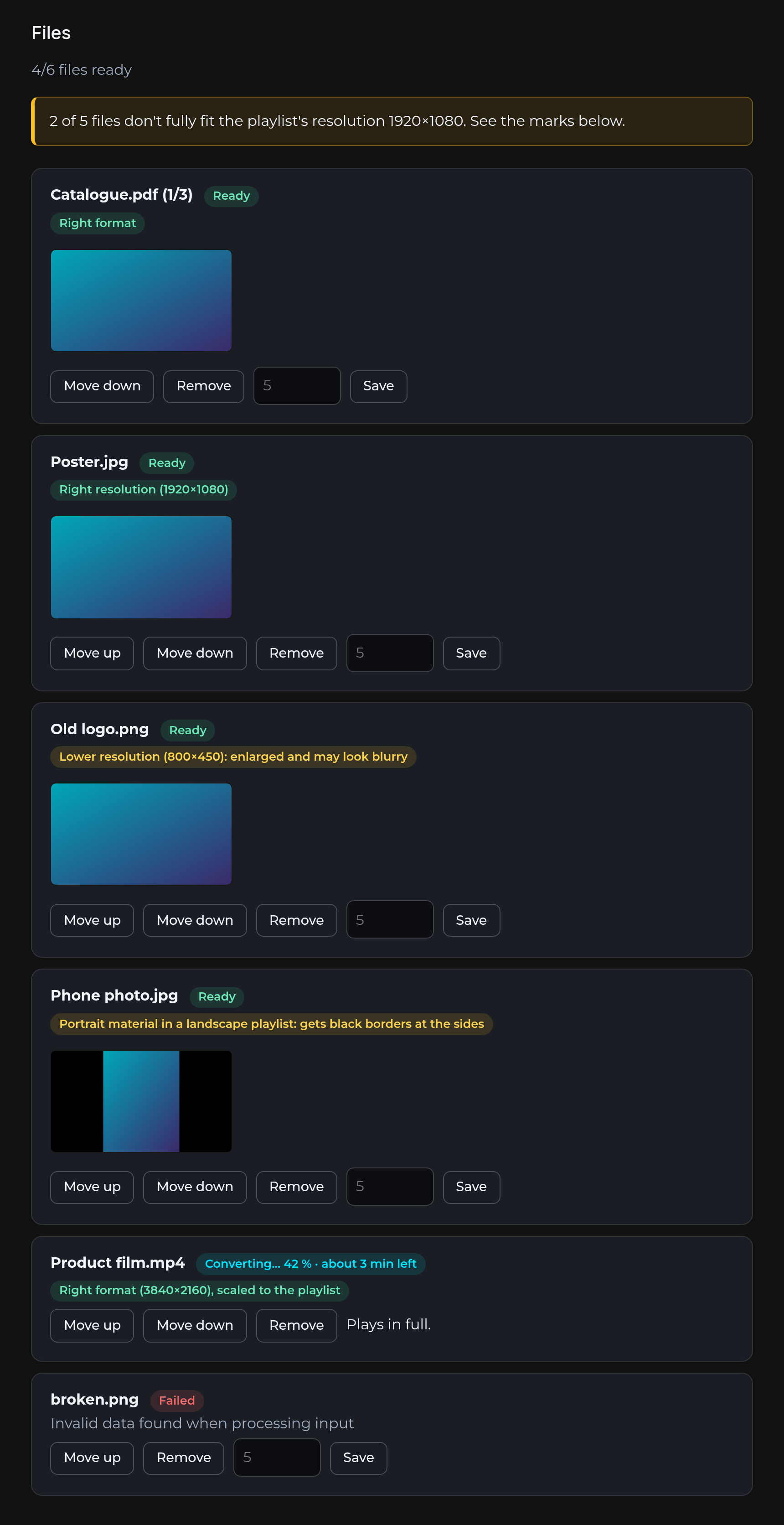
- The files are converted to the screen's format. For video, the page shows how far the conversion has come and roughly how much time is left.
- Move up/down changes the order, Remove removes a file, and an image can have a display time of its own.
The resolution marks
Each file gets a mark even before it has been converted, so you and the customer see at once whether the material fits:
| Right resolution Right format | Fills the screen. Larger files in the right format are scaled down. |
| Lower resolution | Enlarged, and may look blurry. |
| Different format | Gets black borders. Material is never cropped. |
4. Publish
When all files are ready, Publish shows up in the playlist. Only published playlists can be chosen on a screen. If you publish again after a change, the screens showing the playlist update by themselves. They go black for a moment while the new content loads.
Delete the playlist removes it for good. Screens showing it go back to their QR code.
5. Choose what the screen shows, on site
A screen without content shows a QR code.
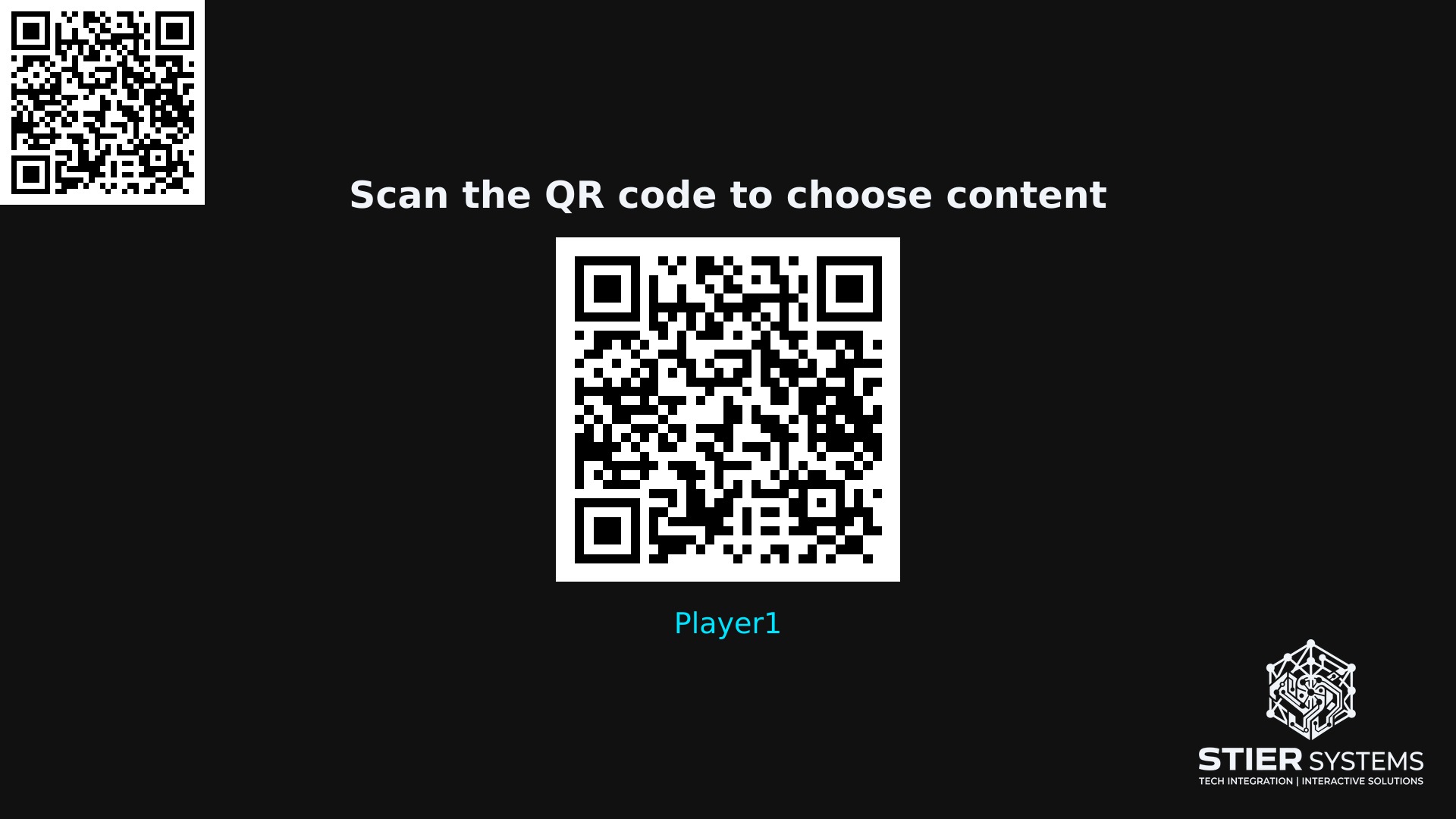
- Scan the QR code with your phone.
- Tap Log in under Can't find the right project? and log in with your partner login. You come back to the same screen.
- Under Your playlists are all your published playlists in current and upcoming projects, whatever their resolution. Under Booked on this screen is what is booked to this particular screen. Tap the playlist the screen should show.
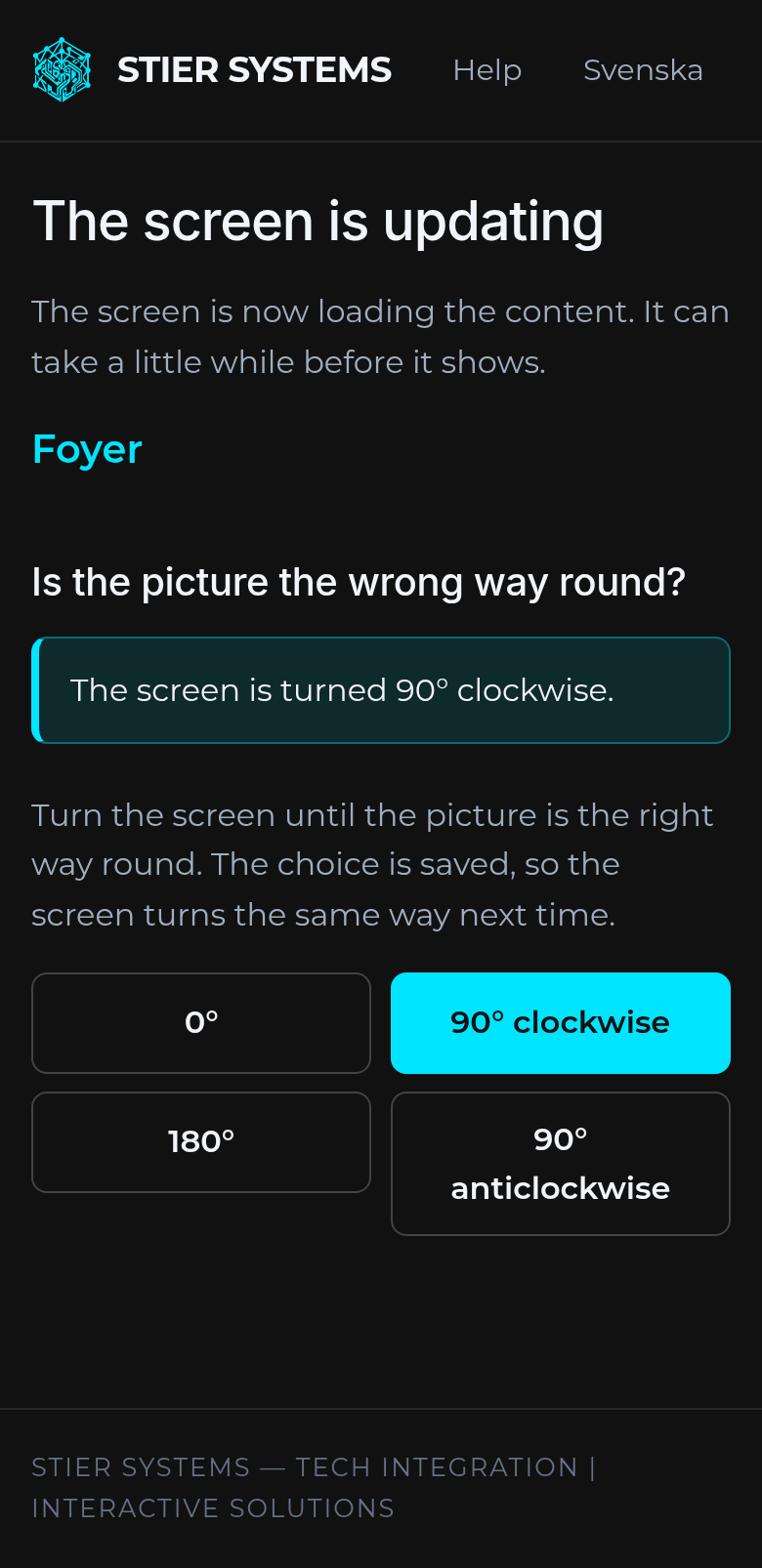
- Is the picture the wrong way round? Tap the rotation that makes the picture the right way round. This works for half an hour after choosing. If the playlist's format fits the screen, the rotation is saved, so the screen turns the same way next time. Otherwise it applies just this time.
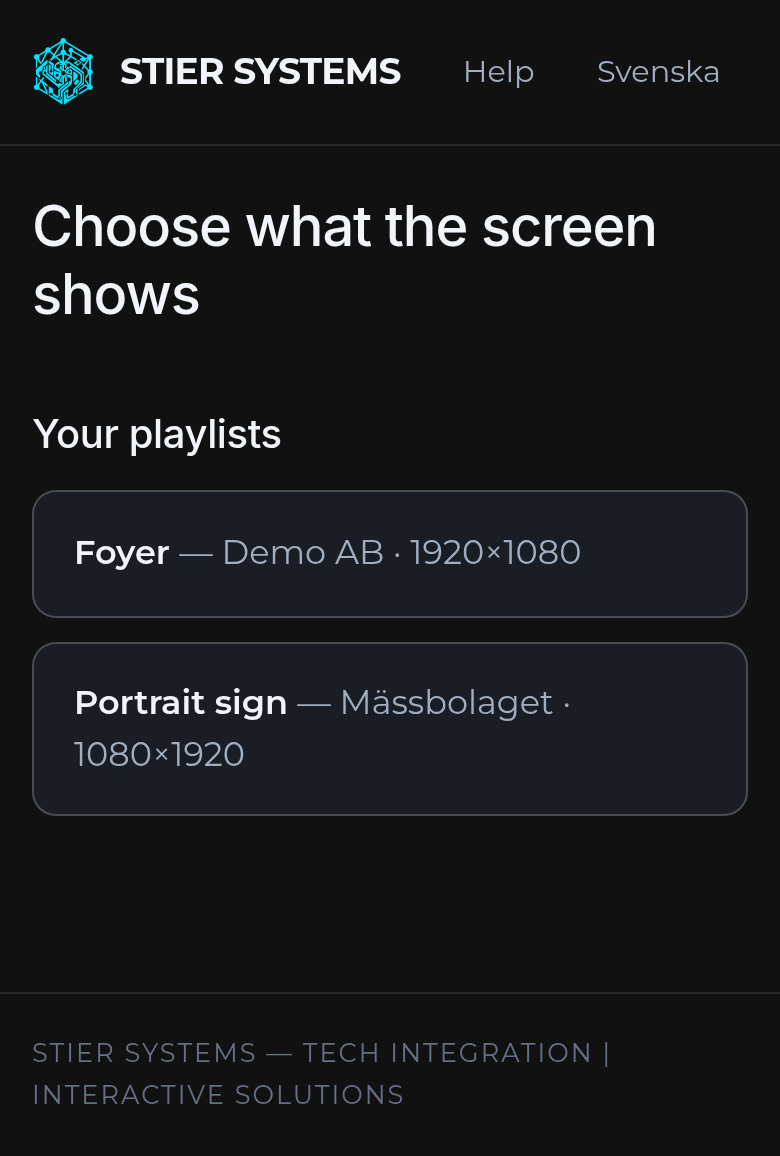
Someone who scans without logging in, for example the customer, only sees playlists in projects booked to the screen, and only those that fit the screen's resolution.
Go to the start page of the partner portal and press Remove from the screen. The screen shows its QR code again, and you can choose anew.
A screen that can't reach a network starts its own wifi, where you choose the venue's network from your phone, see Connecting a screen to wifi. Send us the venue's wifi name and password in advance, and the screens connect at once.
6. Remote-controlled playlist: choose the film with a phone
A remote-controlled playlist suits a screen where visitors or staff should be able to choose which film it shows, for example at a stand with several product films. The screen shows the first file until someone chooses another on the remote control on their phone.
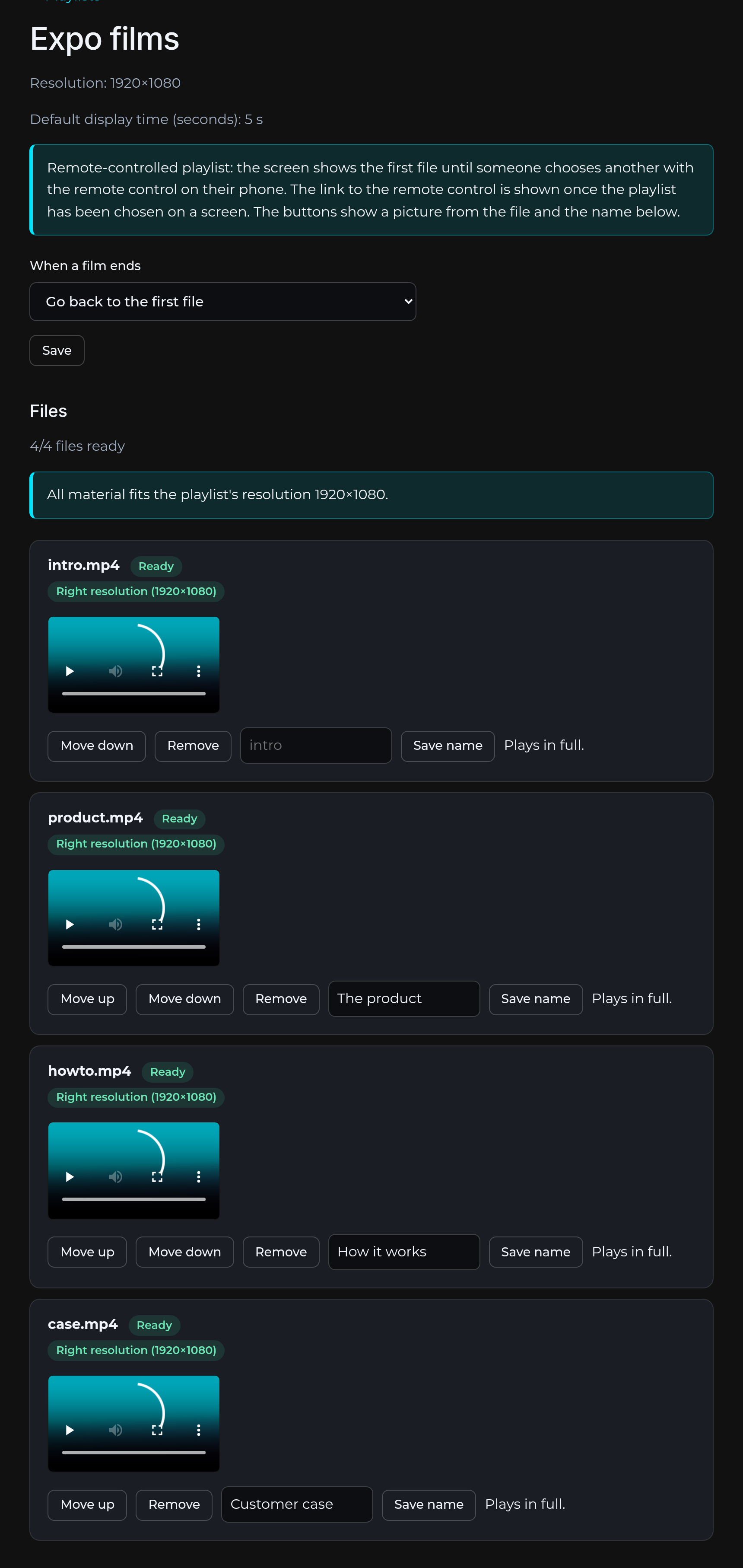
- Choose the type Remote-controlled when you create the playlist, and what the screen should do when a film ends: go back to the first file, or keep showing it (loop) until someone chooses another. You can change this later on the playlist's page.
- Upload the films. The first file is what the screen shows when nobody has chosen anything, so put a welcome film or a loop first.
- Give each file a name on the remote control. Without a name, the file name is used. The buttons also show a picture from the file.
- Publish. Changed names and settings only show once you publish again.
- Choose the playlist on the screen as usual through the QR code. After choosing, the link to the remote control is shown. Open it, or copy it and send it to whoever should control the screen.
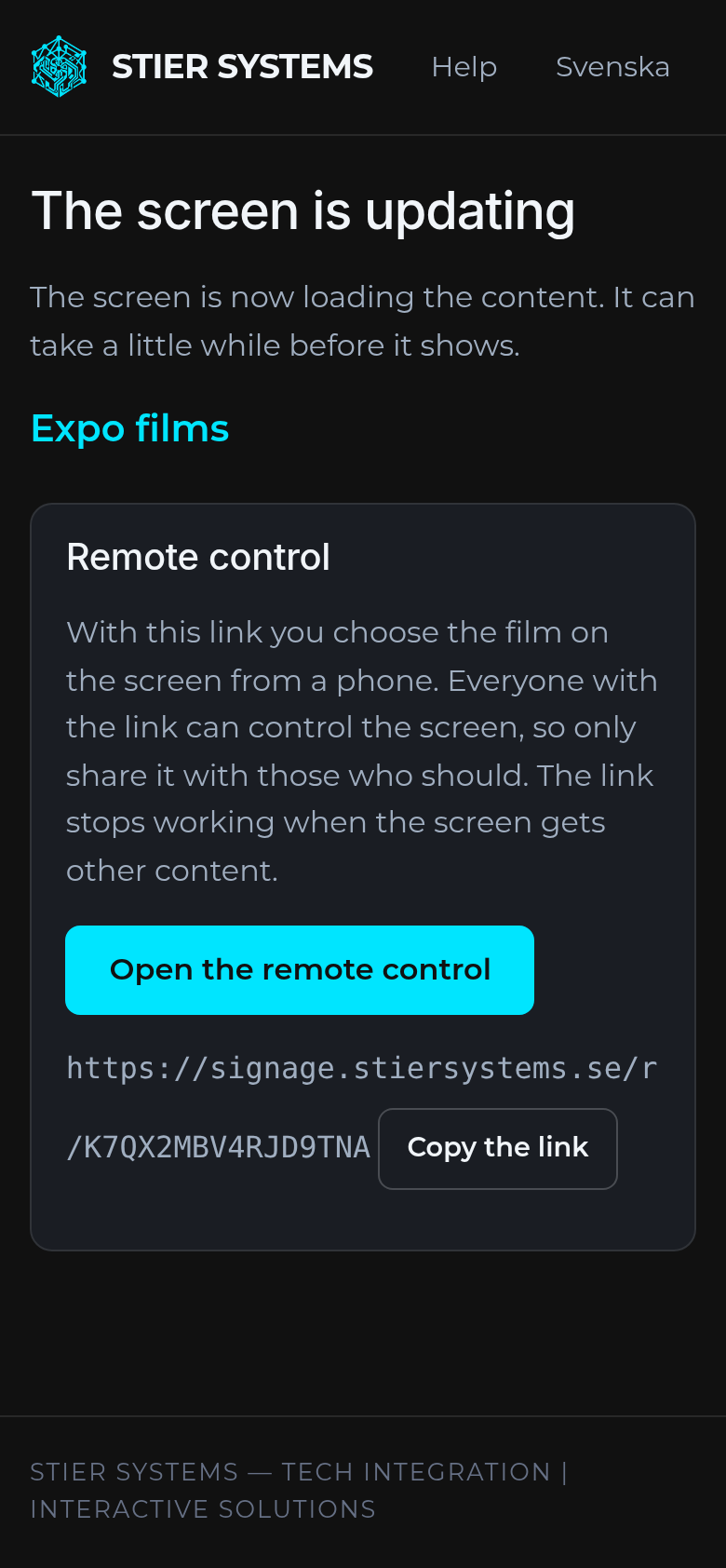
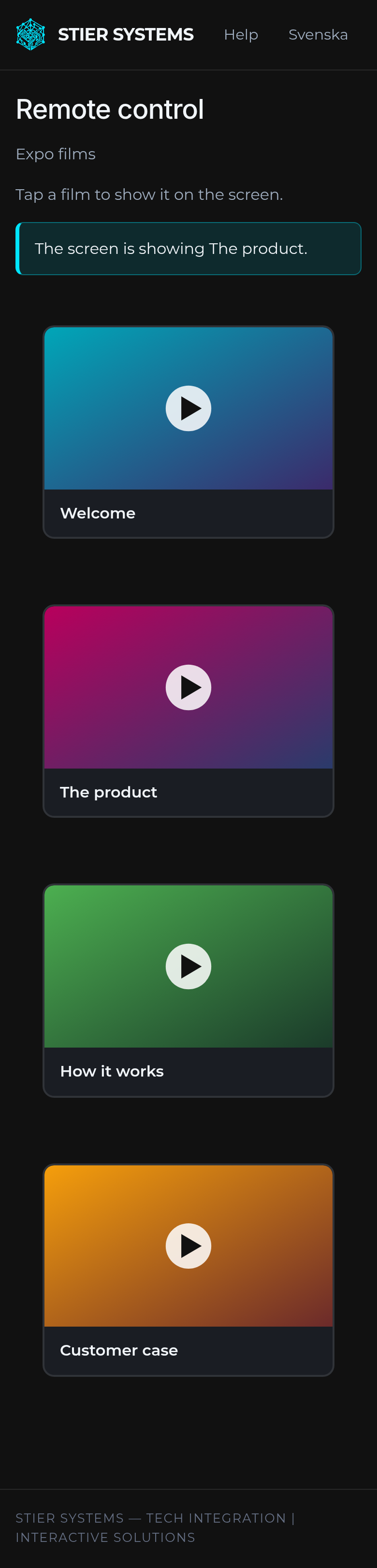
Everyone who has the link, without logging in. Only share it with those who should control the screen. The link stops working when the screen gets other content or goes back to its QR code, and choosing the playlist again gives a new link.
The remote control for a screen showing one of your remote-controlled playlists is also on the partner portal's start page, under Screens showing your playlists.
After the event
- The day after the end date the project's screens go back to their QR code automatically, and the project's playlists can no longer be chosen.
- Five days after the end date the project's uploaded material and files are deleted. Keep copies of what you want to keep.
- If you want a project removed completely earlier, contact us.
Tips
- Make the material in exactly the screen's resolution, for example 1920×1080, 3840×2160 or 1080×1920 portrait.
- Upload and publish in good time. Large videos take a while to convert.
- One project per customer and event makes it easy to find the right one on site, and the material is cleaned up automatically afterwards.
- Send the link to the guide for customers together with the customer's login.